11 · Verifactu (AEAT)
Verifactu is the Spanish Tax Agency (AEAT) system for verifiable invoicing systems (SIF) under RD 1007/2023. With Verifactu enabled, every invoice or receipt issued by Factuzam:
- is printed with a tax QR code and the text
VERI*FACTU - Factura verificable en la sede electrónica de la AEAT; - is reported automatically to the AEAT in the background and chained to earlier invoices through a SHA-256 hash, ensuring that invoices cannot be altered or deleted.
This chapter explains its configuration, automatic operation and the available tax actions (cancel, correct, remedy and so on).
Factuzam supports three tax modes:
| Mode | Use |
|---|---|
| SIN | Transitional period or demo: does not create a SIF record or AEAT queue entry. |
| VERIFACTU | Sends records to the AEAT through the queue. |
| NO_VERIFACTU | Records the chain locally and allows invoicing and event XML to be exported; it must be signed with a certificate. |
Verifactu is a cross-application subsystem: it affects sales invoices and the Facturas Simplificadas and Caja POS. It is documented in one place here.
1. How it works (overview)
   Venta / Factura
        │
        ▼
  Se encola  ──►  fza_verifactu_cola  (estado PENDIENTE)
        │
        ▼
  Hilo de envío en segundo plano (cada X segundos)
        │   reclama filas PENDIENTE → PROCESANDO
        ▼
  Envío a la AEAT (SOAP, certificado de la empresa)
        ├── Aceptado ─► ENVIADA · factura CONSOLIDADA · genera QR y hash
        └── Error    ─► reintento con espera creciente; al agotar, ERROR
Key points:
- The receipt QR code is generated locally when printing; it does not wait for the AEAT response, so a till sale is never slowed down.
- Communication is performed by a background process (the “queue”), so the cashier can keep working while invoices are sent.
- Every accepted submission chains its hash to the previous invoice for the same issuing NIF: this is the integrity guarantee required by the AEAT.
2. Preliminary configuration (administrator)
Three things must be prepared before enabling Verifactu:
2.1 Company certificate
Under Archivo ▸ Empresas ▸ Certificado / Verifactu, enter the certificate serial number and its type. The application uses this certificate (from the Windows certificate store) to sign submissions to the AEAT. Submissions fail without a valid certificate.
2.2 Verifactu parameters
Under Otros ▸ Parámetros del entorno, category Verifactu:
| Parameter | Meaning |
|---|---|
| Modo fiscal | SIN, VERIFACTU or NO_VERIFACTU. Only an administrator should change it. |
| Entorno | PRE (AEAT test environment) or PRO (live production). |
| NIF del SIF | NIF of the invoicing system. Required: if empty, the AEAT rejects it with error “[1100] NIF” (see troubleshooting). |
| Razón social del SIF | Name/company name of the system producer. |
| Id. de instalación | Identifier for this installation. |
| Segundos de ciclo | How often the send process checks the queue (60 seconds by default). |
| Máx. intentos | Retries before marking an invoice as ERROR (10 by default). |
| URLs de QR y de envío (PRE/PRO) | AEAT addresses for QR verification and submission; completed by default. |
| Firma con certificado | In NO_VERIFACTU mode, signs local records with XAdES using the company certificate. |
| Servidores NTP / margen reloj | Fiscal clock control that blocks records when the computer clock is unreliable. |
Switch to
PREfirst to test against the AEAT test environment. In PRE, the liable party's NIF must be registered in the test census and related to the certificate. Switch toPROonly when everything works.
2.3 Enabling the system
Select the tax mode:
- In VERIFACTU, new sales and invoices are printed with a QR code and queued automatically.
- In NO_VERIFACTU, the chain is recorded and signed locally. There is no AEAT queue, but the required XML files can be exported.
- In SIN, the system can operate without SIF closure during the transitional period or for testing.
3. The Verifactu menu
When the subsystem is installed, the main Verifactu menu displays two options (both can be hidden by group under Permisos):
Verifactu
├── Declaración Responsable
└── Verifactu Log
The tax queue is grouped with the other integrations under Otros ▸ Colas de envíos ▸ Verifactu.
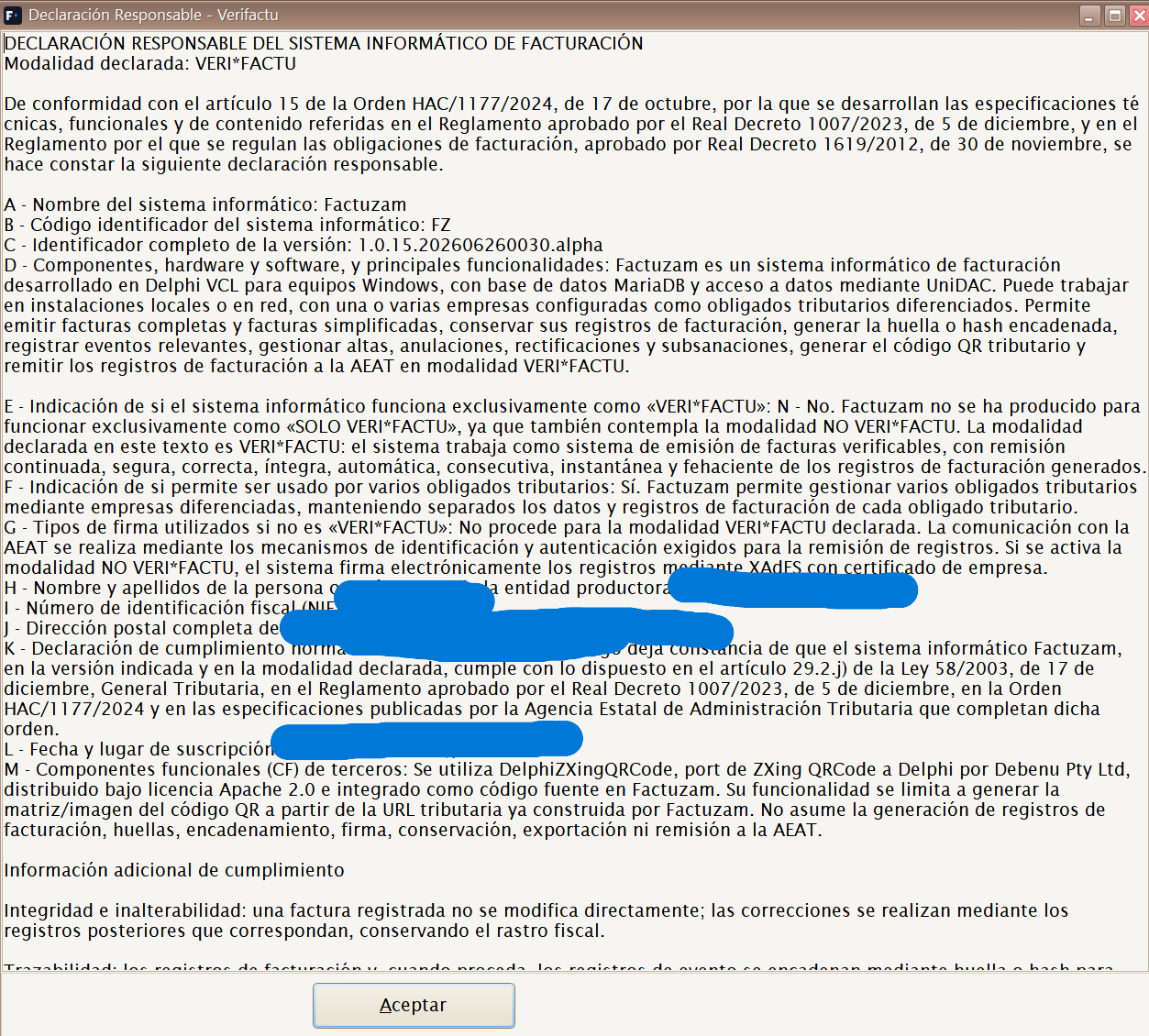
Declaración Responsable
Displays the system's responsibility statement for invoicing (Article 13
of RD 1007/2023), composed using the system name (Factuzam), its identifier,
the installed version, and the configured producer/installation details.
This document certifies that the application complies with the regulations.
Cola de Envíos
Path: Otros ▸ Colas de envíos ▸ Verifactu
Enquiry for the communication queue (fza_verifactu_cola): displays every
pending or processed invoice with its status, number of attempts, date
of the next attempt, and error message where applicable.
| Status | Meaning |
|---|---|
| PENDIENTE | Queued, waiting for the process to send it. |
| PROCESANDO | The process is sending it now. |
| ENVIADA | Accepted by the AEAT and consolidated. |
| ERROR | Retries exhausted; requires review. |
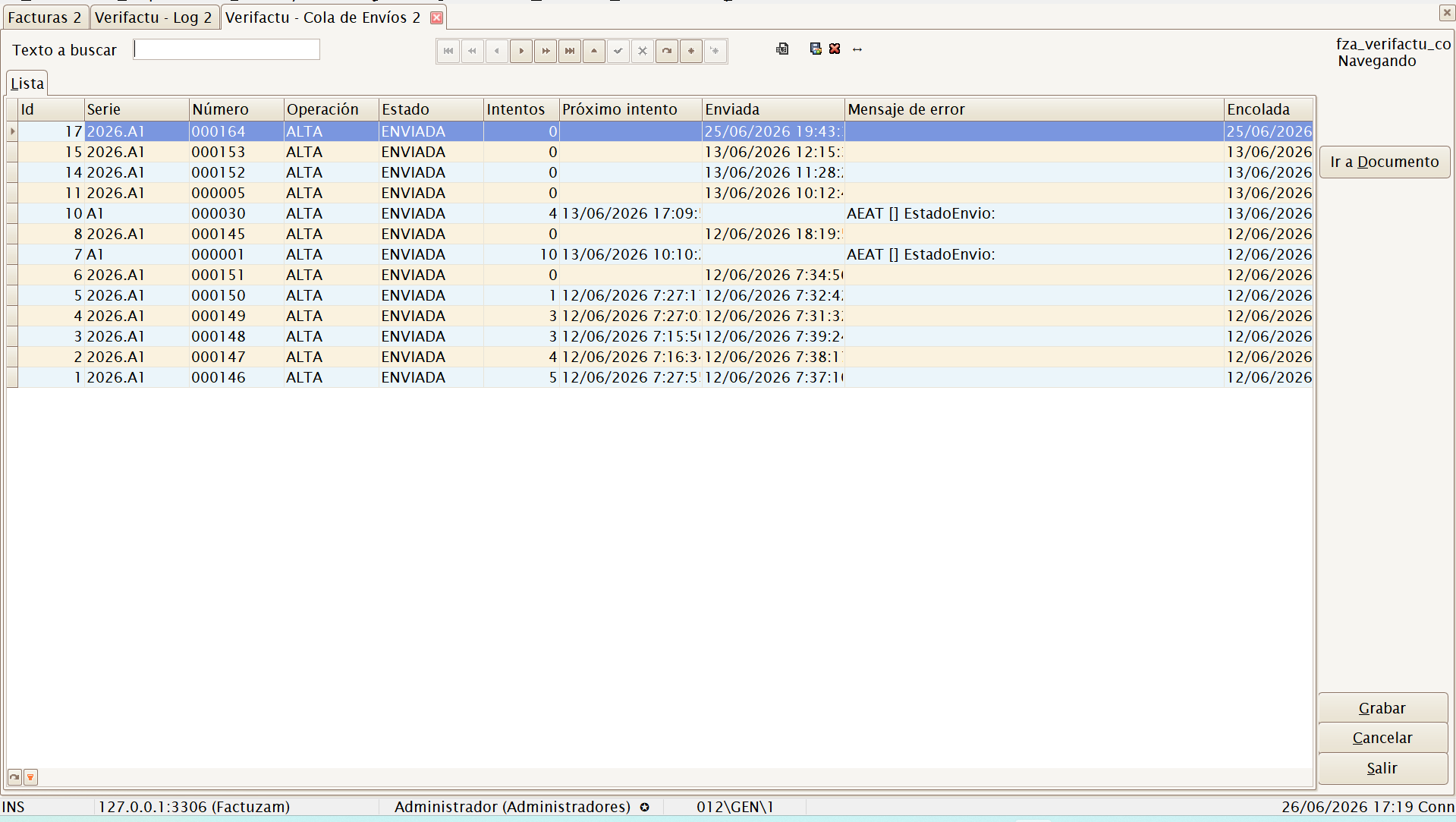
Manual reprocessing: on this screen you can edit the Estado, Intentos and Próximo intento columns for a row. Once saved, the process resumes it during the next cycle. This is how you resubmit a job left in
ERRORafter correcting its cause (for example, the SIF NIF or certificate). All other columns are read-only.
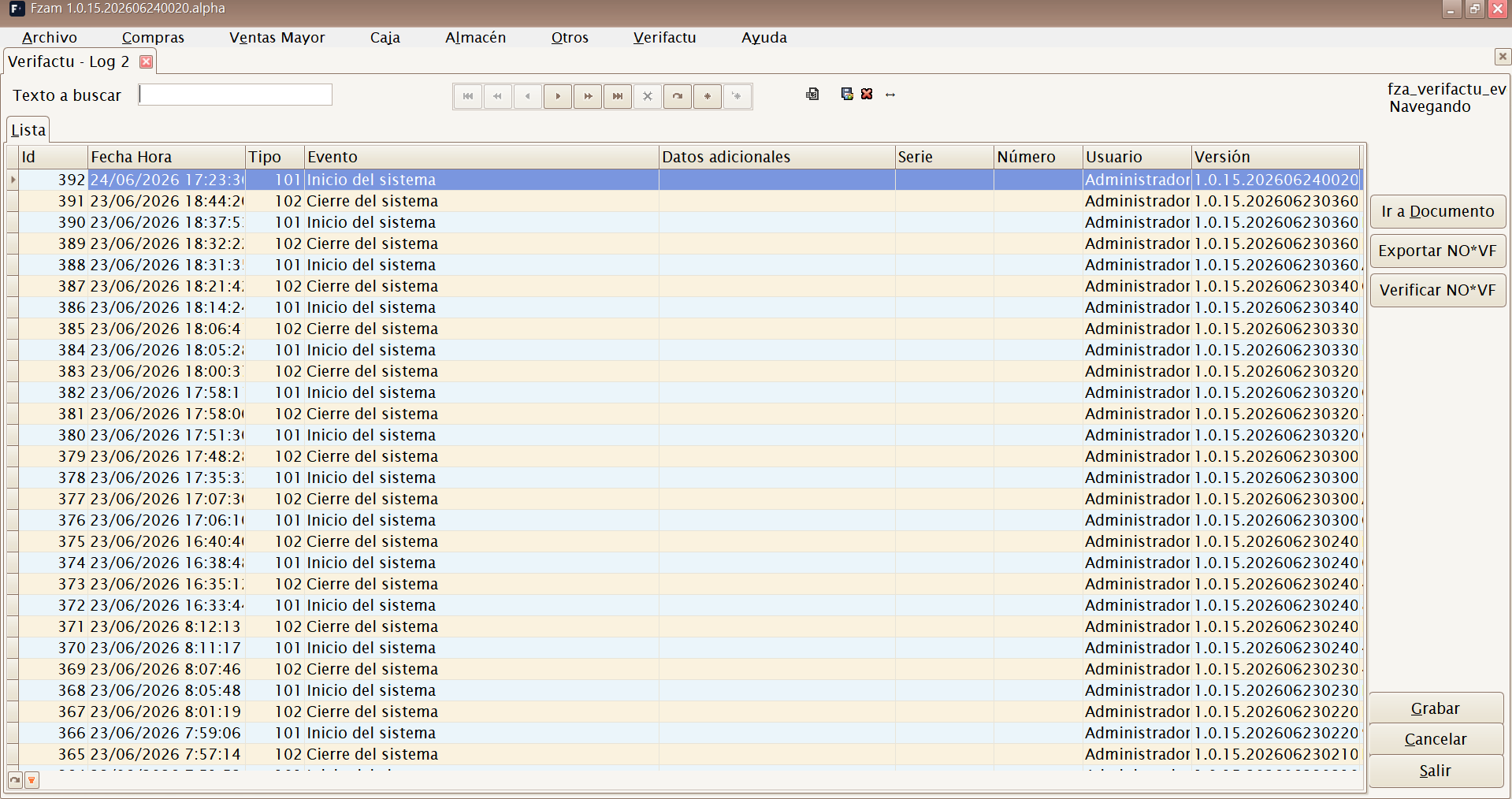
Verifactu Log
Enquiry for the chained event log (fza_verifactu_eventos): the complete
trace of creations, cancellations and AEAT responses with its SHA-256 hash
chain. This is the system audit screen. Read-only.
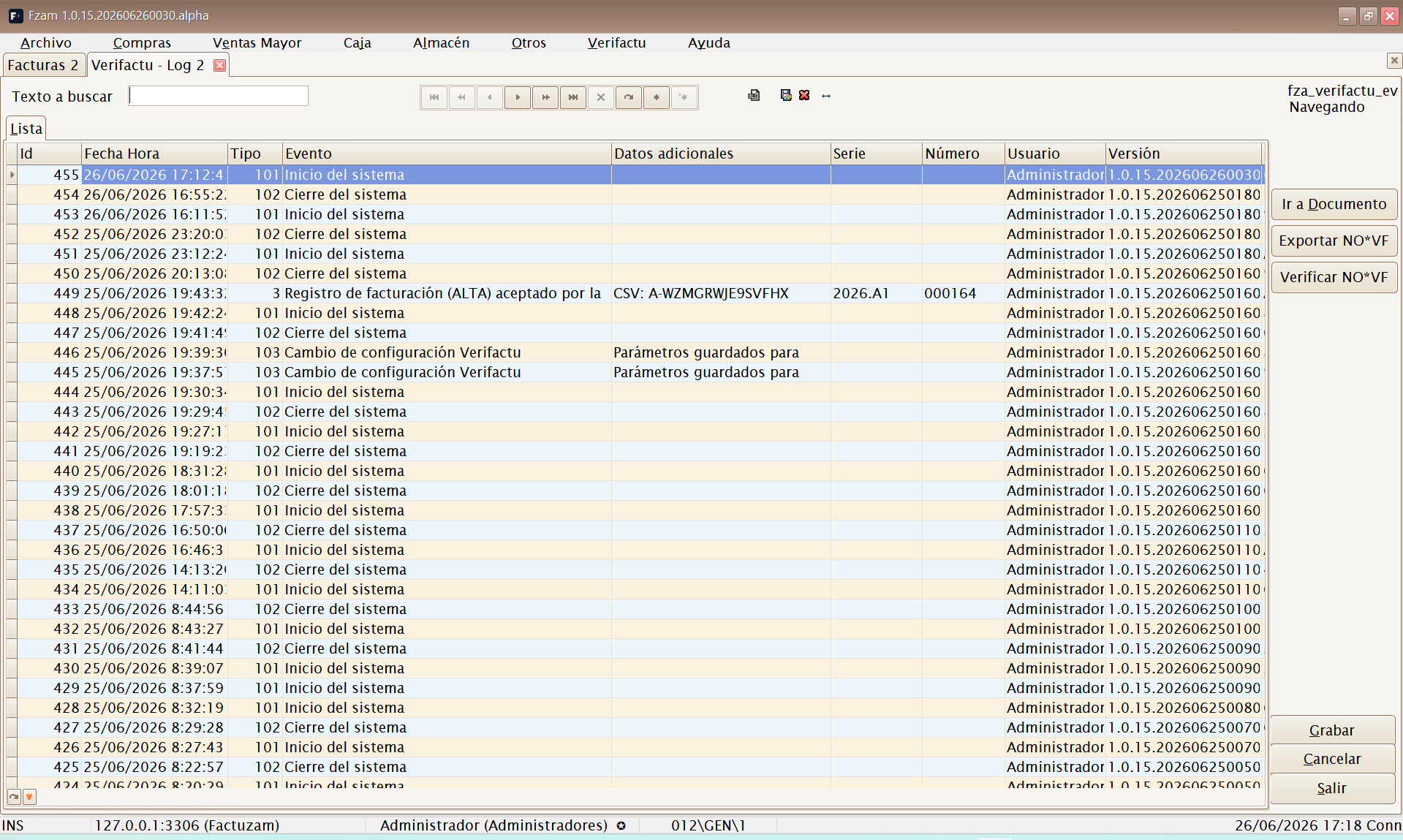
In NO_VERIFACTU mode, the Exportar NO*VF button generates two XML files:
event record and invoicing record. Export only packages records already
generated; it does not create traceability at that point.
4. Verifactu on the invoice record
When you open a standard or simplified draft, two specific tabs and a button are available:
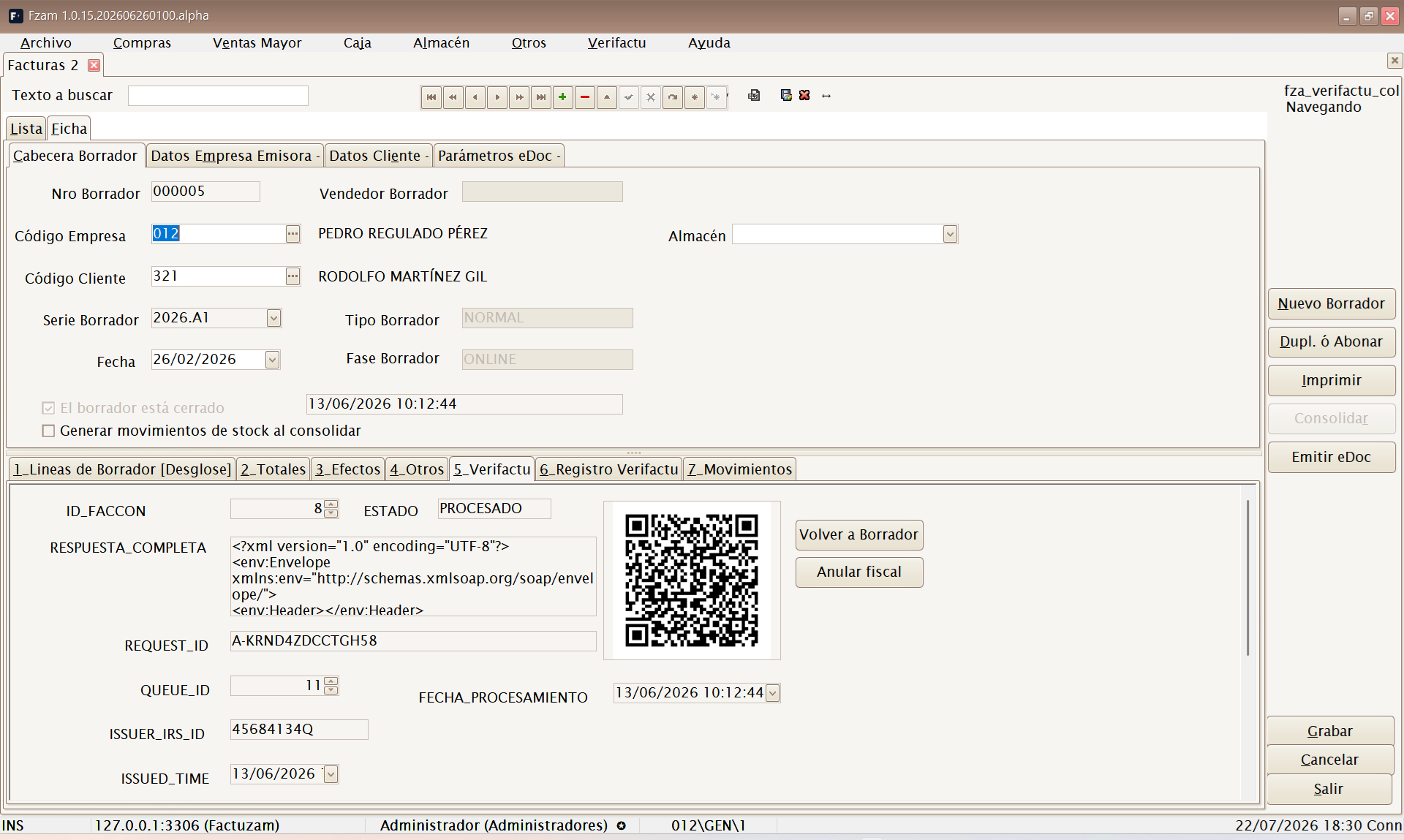
- Pestaña Verifactu — displays the communication result: generated QR, AEAT verification URL, chain hash (
CHAIN_HASH), consolidation status and identifiers (CSV, queue id, request id). Includes the Consultar Estado and Reconsolidar OFFLINE buttons. - Pestaña Registro Verifactu — the event log for that specific invoice.
- Consolidar button — forces the invoice to be recorded/reported to Verifactu (normally unnecessary, as the queue does this automatically).
On the Otros tab, you can specify the tipo de operación Verifactu when it is not a general domestic sale: intra-Community service, intra-Community supply, reverse charge or export. For foreign customers, the application uses the country and NIF-IVA/document data to construct the correct recipient.
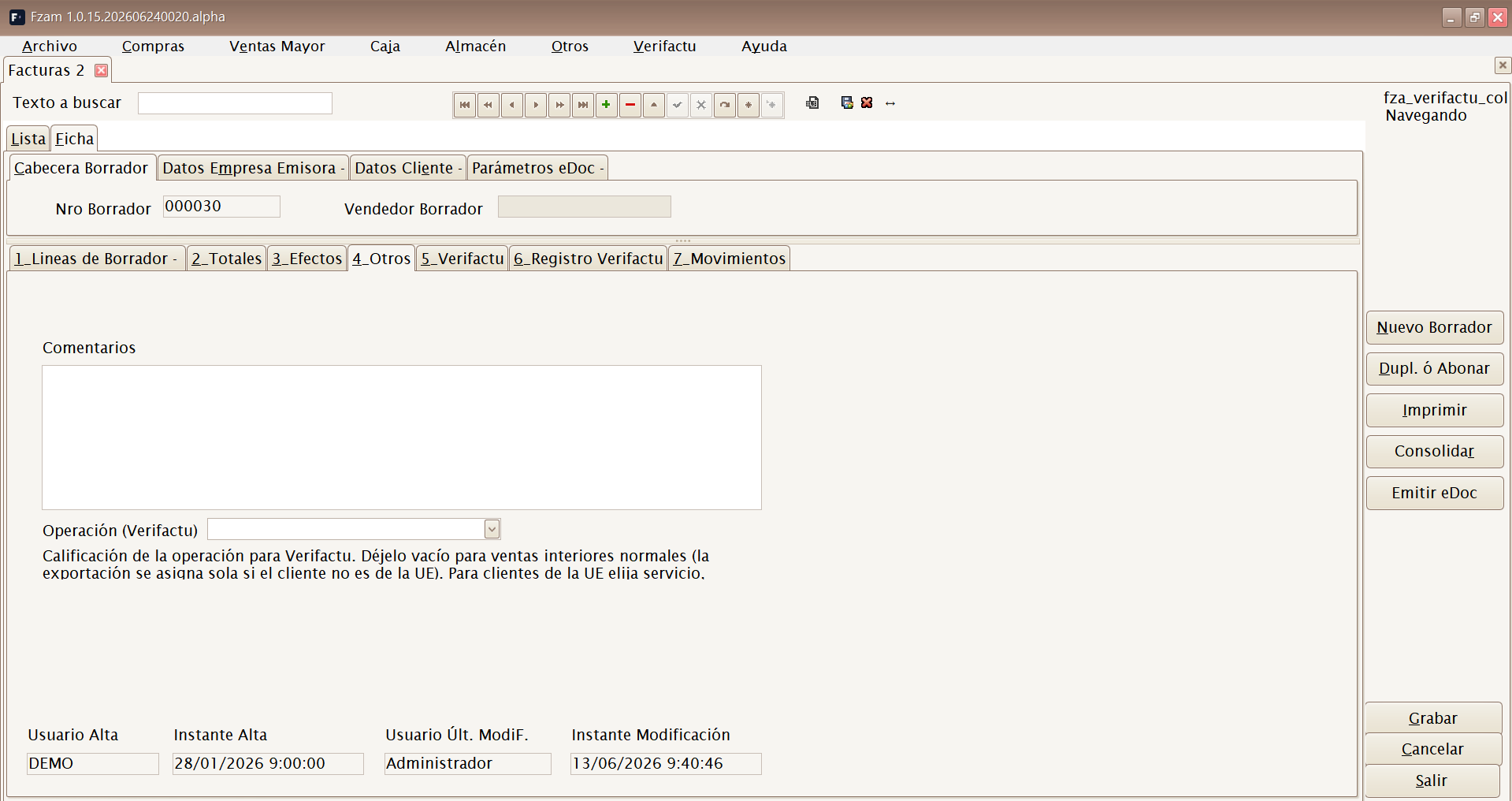
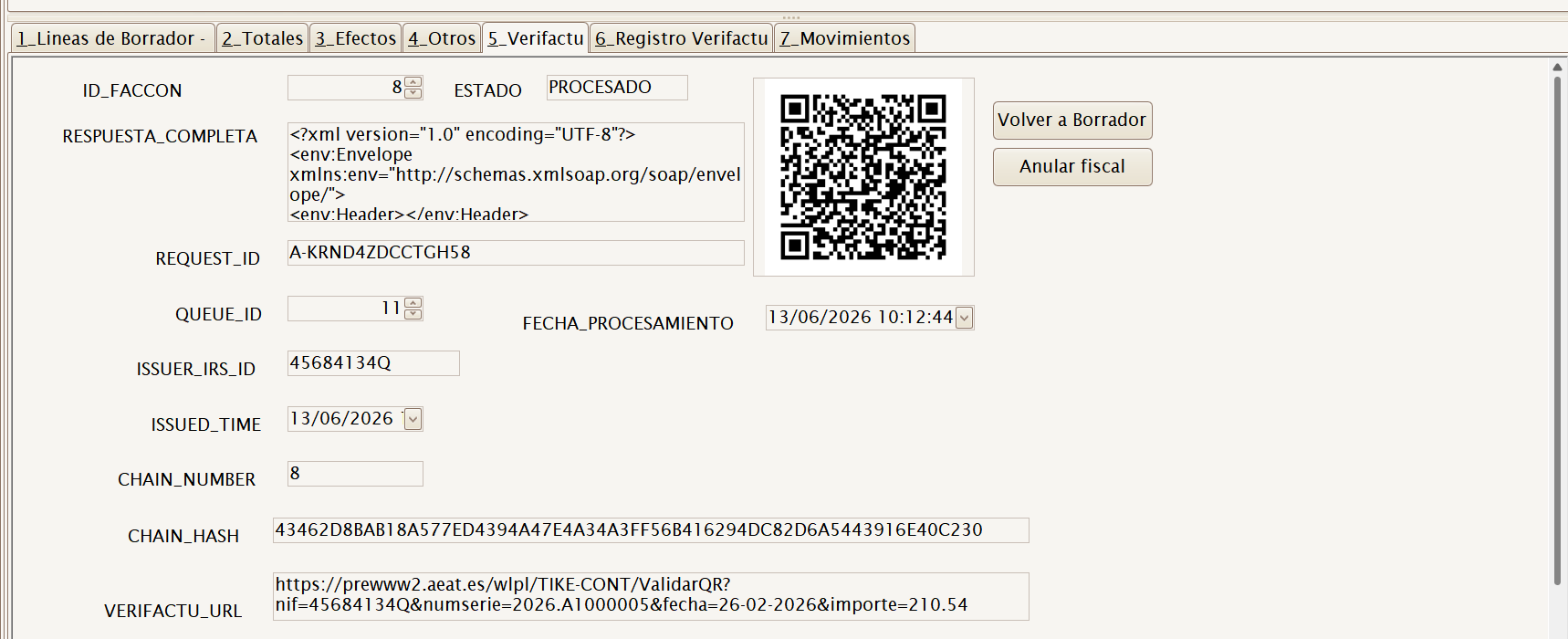
A consolidated draft (
ESCONSOLIDADA = S) already has fiscal closure and cannot be modified or deleted: corrections are made through a corrective invoice or cancellation (see below). This is the SIF immutability principle.
5. Tax actions on an issued invoice
Because a registered invoice cannot be altered, Verifactu provides different routes according to your needs. They are available in the Borradores list and Caja POS Buscar operaciones, always for a document that is already consolidated:
| You need to… | Action | What it does |
|---|---|---|
| Cancel a non-existent or incorrect sale | Anular (Verifactu) | Queues a cancellation record. The invoice changes to CANCELADA. |
| Correct amounts or concepts | Rectificar | Creates a corrective invoice by differences (negative correction) or replacement invoice (correct document in positive), always linked to the original. |
| The AEAT accepted the record with errors, but the issued invoice is correct | Resolver incidencia ▸ Subsanar el registro | Resends the corrected record with the remedy indicator, without creating another invoice. |
| The issued invoice contains an incorrect NIF or other data | Resolver incidencia ▸ Emitir rectificativa R4 | Creates a replacement corrective invoice with the correct recipient and links it to the original. |
| A customer requests a named invoice for their receipt | Facturar ticket (F3) | Creates a standard invoice replacing the simplified one, copies its lines and names the customer. |
| The customer identifies themselves at the time of sale | Factura (F8) during the collection phase | Records the sale directly as a standard invoice (not a receipt); requires a customer with NIF and prints to A4/PDF. |
Corrective invoice by differences and replacement invoice
When correcting a receipt from Buscar operaciones, Factuzam asks for the mode before opening the new till operation:
| Type | New document | Practical result |
|---|---|---|
| Por diferencias | Displays negative lines to retain only the required correction. | The original invoice and corrective invoice together form the final result. Suitable for partial returns or specific differences. |
| Sustitutiva | Displays the complete correct content as positive values. | The corrective invoice replaces the original. In sales reports, the original simplified invoice is no longer counted and the replacement is counted. |
Both modes retain the relationship between documents, corrective series, reason and fiscal traceability. Replacement mode also replaces the original warehouse movements with those from the corrected document; differences mode retains the original movements and adds the signed adjustment.
The step-by-step procedure is under TPV ▸ Correcting a receipt.
Resolving “Accepted with errors” in Ventas Mayor
In Factura Venta Mayor, open the invoice's Verifactu tab. The Resolver incidencia button appears only when the latest record is Aceptado con errores and no remedy is already in progress.
The dialog displays the code and description reported by the AEAT and asks you to choose one of these cases:
- The issued invoice is correct. Enter the reason and use Subsanar el registro. Factuzam queues a new creation record with
<Subsanacion>S</Subsanacion>. It does not modify or replace the invoice. - The issued invoice contains the incorrect data. Select the correct customer, series and date. Factuzam creates and queues an R4 replacement corrective invoice linked to the original.
An NIF error can therefore produce Aceptado con errores, but this alone does not determine the treatment. If the correct NIF was already on the invoice and only the submitted record was constructed incorrectly, remedy the record. If the invoice delivered to the customer contains the wrong NIF, issue the R4. The response, XML and signature from the original creation are retained in the history when the remedy is accepted.
Each of these operations is queued again and reported to the AEAT in
VERIFACTU mode, or recorded locally in NO_VERIFACTU mode, retaining
traceability (which document corrects or replaces which). The list also
shows a «Cola Verifactu» column with the latest status where applicable.
Anular ≠ Rectificar: cancellation removes the invoice for tax purposes; correction issues another invoice that references it. For a change in amounts, Rectificar is normally correct.
6. Troubleshooting common problems
An invoice remains in ERROR in the queue. Open Otros ▸ Colas de envíos
▸ Verifactu and read the row's error message. Common causes:
- “[1100] NIF” on an unaccepted
ERRORrow — the parameters are missing the NIF del SIF, or the company/customer NIF is malformed. Correct the cause and reprocess the row. - NIF error in
Aceptado con errores— use Resolver incidencia. Remedy only applies when the issued invoice was already correct; if the invoice contains the wrong NIF, create the R4 corrective invoice. - Certificate — the company certificate serial number is invalid or is not in the computer's Windows store.
- In PRE — the NIF is not registered in the test environment or does not correspond to the certificate.
After correcting the cause, resubmit by editing the row in the queue
(status → PENDIENTE, attempts → 0), or increase the maximum-attempts
parameter: the process only revives ERROR rows that still have attempts
available.
The system recovers automatically from duplicates: if the AEAT accepts a submission but local saving fails, the retry receives “duplicate record” from the AEAT and the application accepts it as successful. No action is needed.
7. Day-to-day summary
- With Verifactu enabled, you need do nothing special: sell and invoice as usual; QR generation and submission are automatic.
- If an invoice is wrong, do not delete it: use Rectificar, Anular or Resolver incidencia as appropriate.
- Check Otros ▸ Colas de envíos ▸ Verifactu occasionally: if everything is ENVIADA, you are up to date; if you see ERROR, review the message and reprocess it.
- For any AEAT incident, have the application version (Ayuda ▸ Acerca de) and Declaración Responsable to hand.
◀ Migration from legacy · Contents · Next ▶ Changes and new features