06 · Almacén menu
The Almacén menu controls stock: inbound and outbound movements, physical counts (stocktakes) and reports for analysing stock.
Menu structure:
Almacén
├── Movimientos de almacén
├── Inventarios
├── Documentos de Trabajo
└── Informes
    ├── Balance de Almacén Horizontal
    ├── Balance de Almacén sin tallas
    └── Movimientos de ventas por artículos y fechas
Stock is managed by SKU and warehouse. Every document that moves goods (purchase/sales delivery note, return, stocktake or transfer) generates warehouse movements, which are the source of truth for stock levels.
Movimientos de almacén
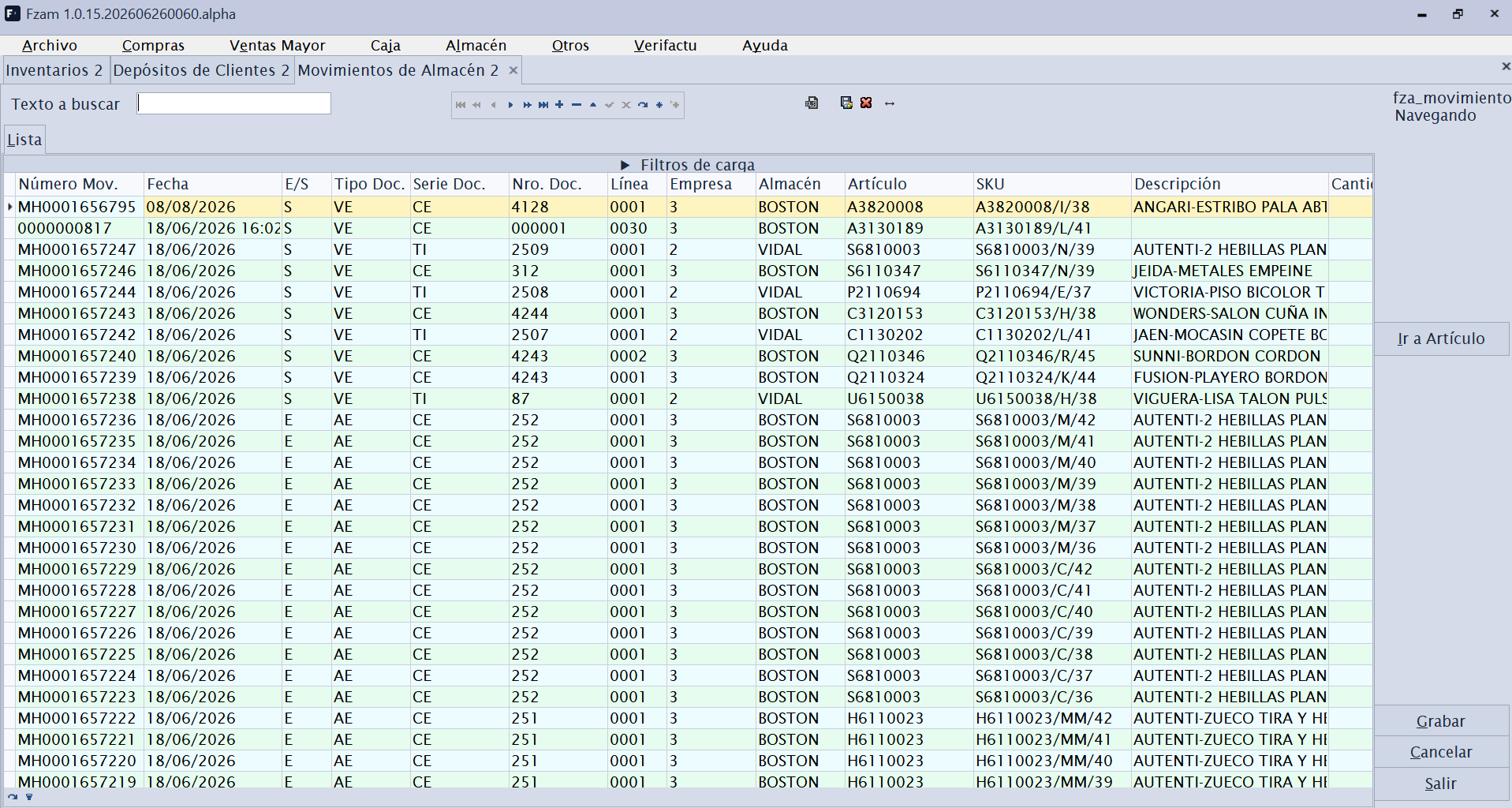
Menu shortcut: [Ctrl]+[M]
Enquiry and maintenance screen for stock movements: every inbound or outbound movement of an SKU in a warehouse, with its date, quantity, reason and source document.
Use it to:
- Audit why an item's stock has its current value (trace inbound and outbound movements).
- Record manual adjustments and transfers between warehouses.
Apart from occasional adjustments, movements are not created manually: they are generated automatically by delivery notes, returns, till sales and stocktakes.
Inventarios
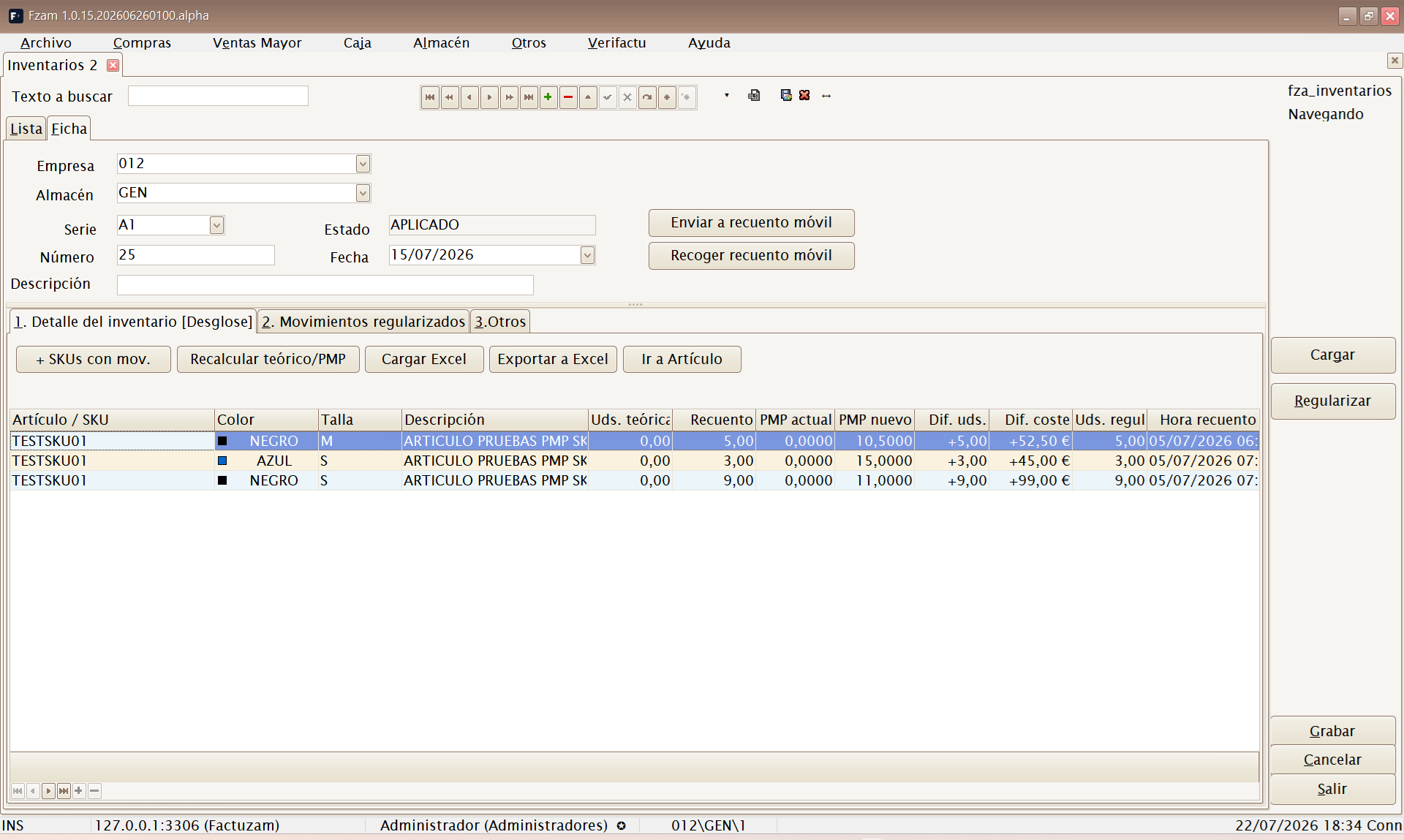
Menu shortcut: [Ctrl]+[Alt]+[I]
Maintenance screen for Inventarios (physical stocktakes). It allows you to count the actual stock and reconcile differences from the system stock.
Sub-tabs:
- Detalle del inventario — lines with the count by item/SKU (counted quantity compared with theoretical quantity).
- Movimientos regularizados — the adjustment movements generated when the stocktake is confirmed, reconciling theoretical and actual stock.
- Otros — header data (warehouse, date and status).
When you confirm a stocktake, the system adjusts stock automatically by creating the required reconciliation movements. Check the count carefully before confirming it.
Mobile stocktaking
In addition to loading the count from Excel, you can send the stocktake to a mobile counting app through a bridge server:
| Button | Use |
|---|---|
| Enviar a recuento móvil | Publishes the stocktake as a template for the warehouse terminals. |
| Recoger recuento móvil | Retrieves the scanned readings, fills in the physical quantities and leaves the stocktake ready for review. |
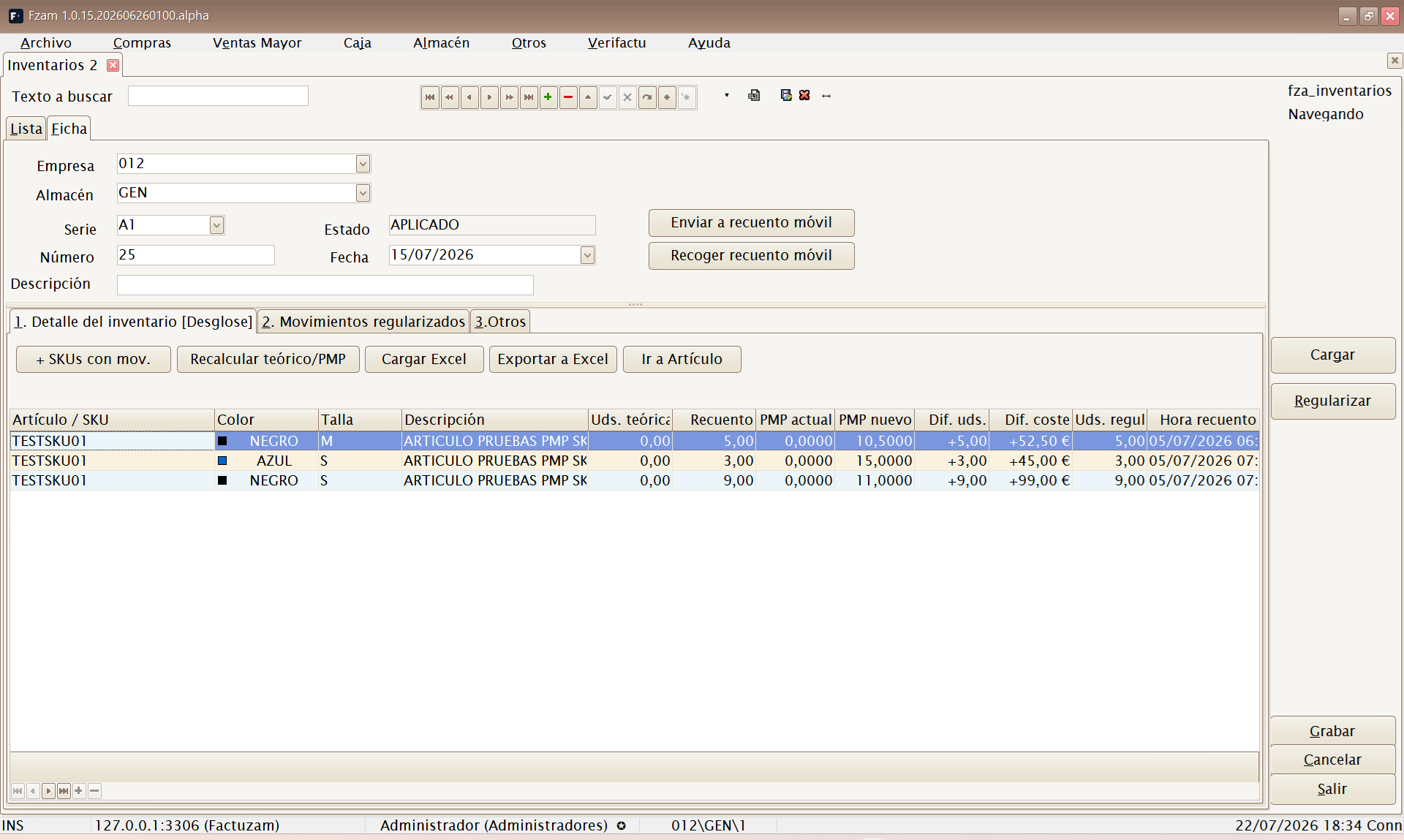
Mobile counting does not reconcile stock by itself. First retrieve the readings, review the differences in Factuzam, and then apply the stocktake through the standard workflow.
Documentos de Trabajo
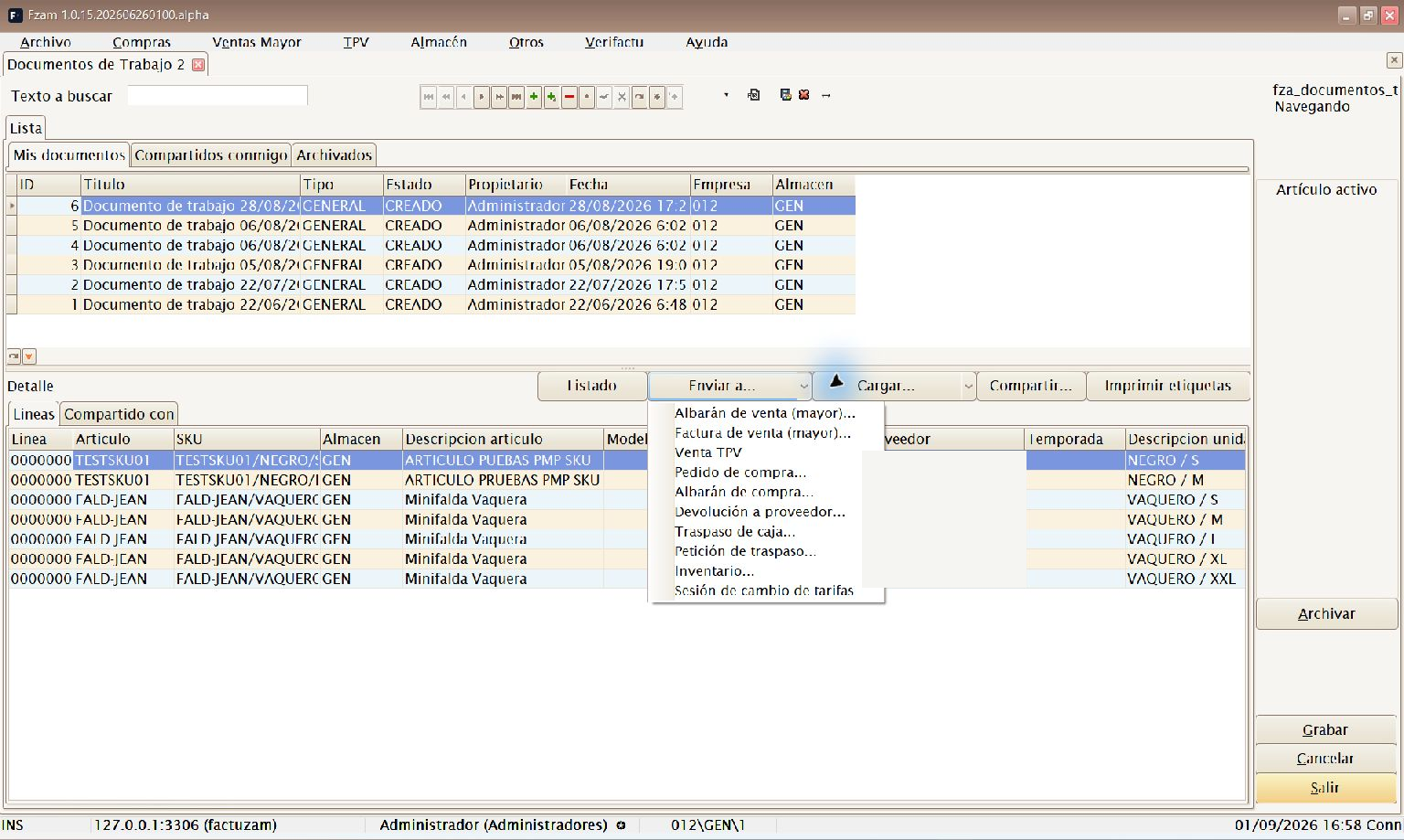 Documento de Trabajo with lines loaded by filters and the Enviar a... menu expanded.
Menu shortcut: [Ctrl]+[W]
A Documento de Trabajo is a working list of items/SKUs: a personal draft in which you collect references and quantities (with a snapshot of stock at that moment), ready to convert into a real document or use for printing labels. Think of it as a reusable internal “basket”: prepare replenishment, a partial count, a selection for changing prices, or an order whose final form is not yet known.
The screen has three scope tabs:
- Mis documentos — documents that you own. You can only create, edit and delete here.
- Compartidos conmigo — other users' documents shared with you or your group. They open as read-only, although they can be used as the source for Enviar a... while their status remains
CREADO. - Archivados — your own documents that have been removed from day-to-day work.
Creating a Documento de Trabajo
- Go to Almacén ▸ Documentos de Trabajo and open Mis documentos.
- Press Insertar on the screen navigator.
- Review the suggested Título and, if necessary, change Tipo, Empresa or Almacén. The warehouse will be the initial reference for stock and subsequent loads.
- Press Grabar. The application automatically assigns the owner, date and
CREADOstatus. - Add lines manually, or use Cargar... ▸ Por filtros... or Cargar... ▸ Desde documento....
The title is required. Only the owner can change the header or lines, and only
while the document is in CREADO status. You must save the header before
using either loading option.
Header and lines
The header stores Título, Tipo (GENERAL by default), Estado
(CREADO by default), owner, date, Empresa and Almacén (the reference
warehouse for stock). The lines contain:
| Column | Meaning |
|---|---|
| Artículo / SKU | Recorded reference, with its description. |
| Almacén | Warehouse for the line (the header warehouse by default). |
| Stock | Stock of the SKU at the moment it was recorded (see Instante stock). It is not recalculated automatically. |
| Cantidad | Working units on the line (scanning a code enters 1 by default). |
| Origen | Where the line came from: manual entry, filter load, stock enquiry and so on. |
Lines are entered in the same way as in Inventarios: [F1] cycles through
Auto (desglose) → SKU → Tallas en línea. This change only affects
the Líneas tab; see the common explanation of
line modes with F1.
Screen buttons
| Button | Use |
|---|---|
| Listado | Opens an Excel preview with one line per SKU, its 300 × 300 photograph, family, supplier, season and price from the first active price list. You can save the .xlsx workbook from the preview. |
| Cargar... | Expands Por filtros... (bulk load by families, suppliers, properties/seasons and warehouses) and Desde documento... (copies lines from an existing document after previewing them). |
| Compartir... | Shares the document with a user or group (read permission). Recipients see it on their Compartidos conmigo tab. Only the owner can share it. |
| Imprimir etiquetas | Opens item label printing with the document's SKUs (select a price list and warehouses as in standard label printing). |
| Enviar a... | Creates a destination document or preloads a Caja operation (see below). |
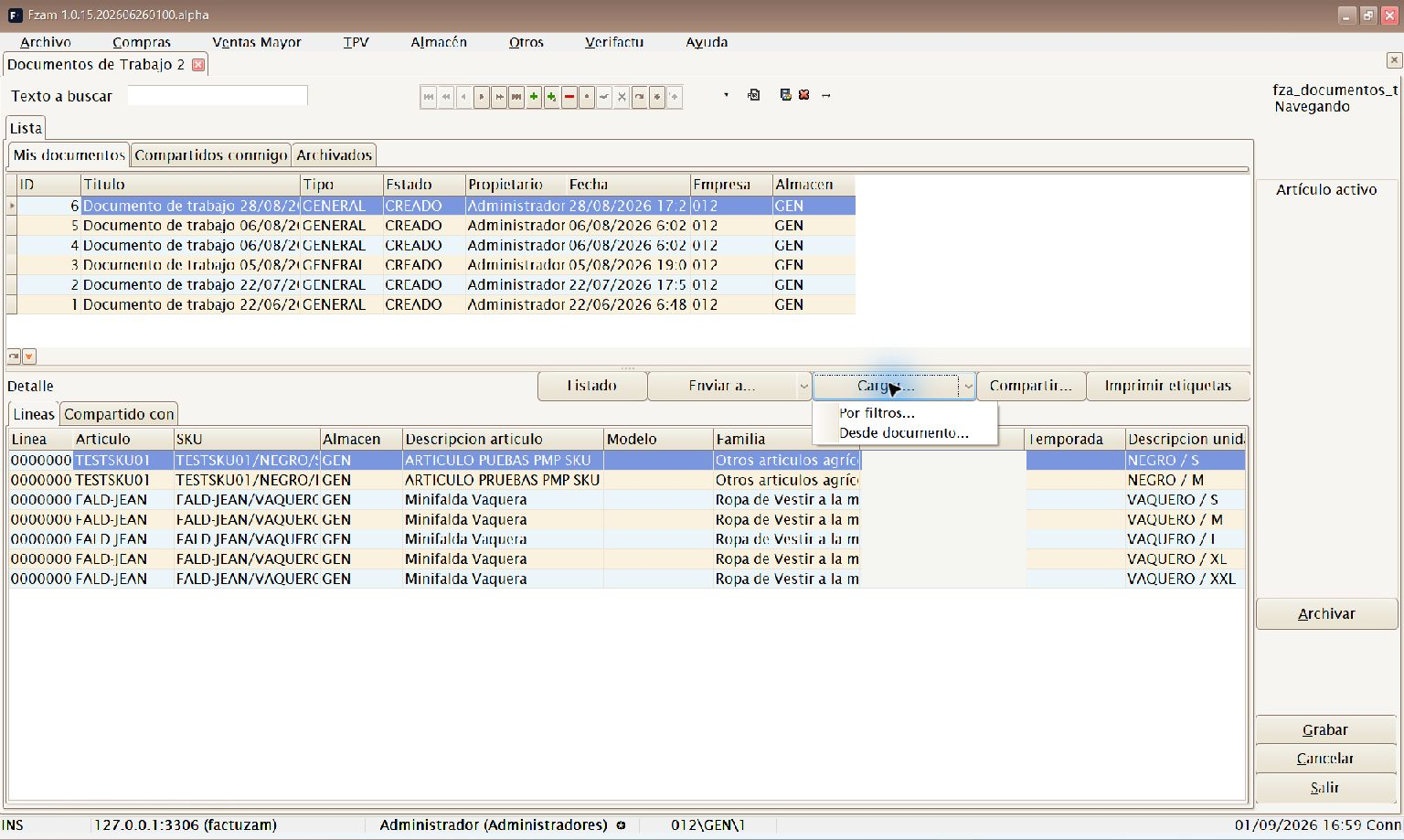
Cargar... menu options: Por filtros... and Desde documento...
Loading by filters
This option creates lines from the catalogue and available stock:
- Open one of your own saved Documentos de Trabajo in
CREADOstatus. - Press Cargar... ▸ Por filtros.... The warehouse in the header is preselected.
- Combine the filters you need:
| Tab or option | What it lets you select |
|---|---|
| Sólo artículos activos | Excludes inactive items. |
| Excluir SKU ya en el documento | Prevents variants that have already been loaded from being suggested again. |
| Familias | One or more families, with optional propagation to subfamilies. |
| Proveedores | Specific suppliers and, optionally, principal suppliers only. |
| Propiedades (incluye temporada) | Item property values, including the effective season value. |
| Almacenes | Source warehouses and stock criterion: positive in any, positive in all or positive total sum. |
| Fecha alta | Items created within a date range. |
| Ventas | Items with or without sales, period, minimum sales and the warehouses where they were sold. It can also find stock shortages in those warehouses. |
- Under Almacenes, adjust Stock mínimo que debe quedar en origen and Cantidad máxima a servir por SKU if required. Their initial values are
1and2, respectively. - Press Previsualizar and review the SKUs found, their stock and whether they have already been loaded.
- Press Aceptar (F12) and confirm the load.
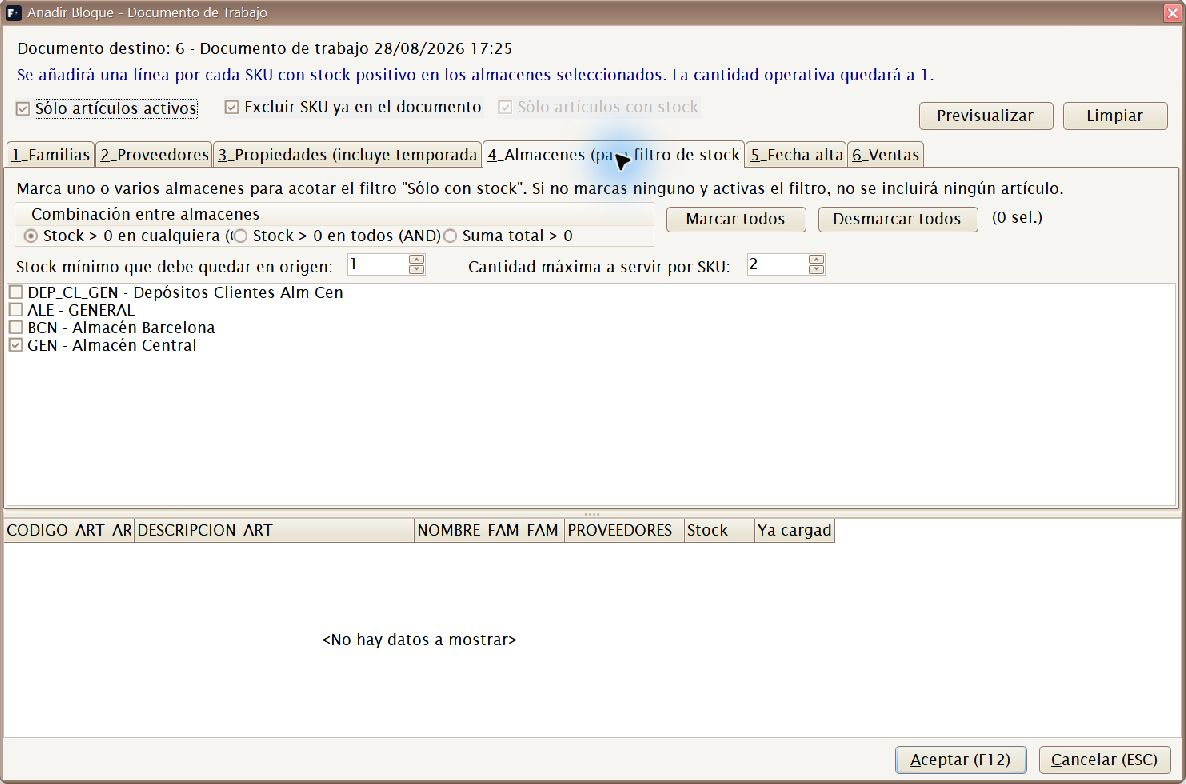
Selecting warehouses, the stock criterion, minimum reserve and maximum quantity per SKU.
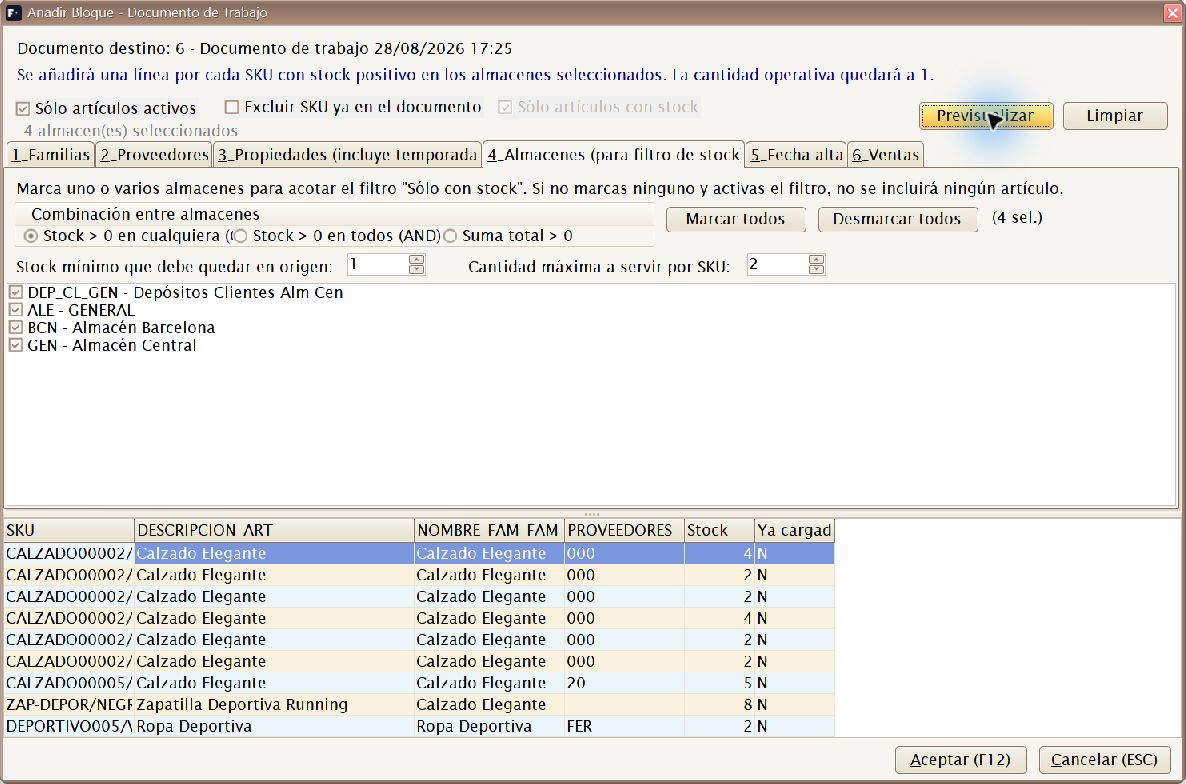
Result of Previsualizar, reviewed before accepting the load.
For Documentos de Trabajo, Sólo artículos con stock remains selected and
at least one warehouse must be selected. When you confirm, Factuzam checks
stock again: it only adds the quantity that allows the specified reserve to be
retained and never exceeds the maximum per SKU. If an SKU is split between
several warehouses or batches, it may create more than one line. The lines are
marked with FILTROS as their source.
Loading from a document
- Open one of your own saved, editable Documentos de Trabajo.
- Press Cargar... ▸ Desde documento....
- Empresa is taken from the header and is locked. Under Mostrar, choose whether to display the latest
100,250,500or1000documents. - Choose a Tipo, or leave Todos selected. Serie and Número are partial filters within that set of recent documents; press Actualizar to apply them.
- Select a row under Últimos documentos, review the Vista previa de líneas, and press Cargar documento.
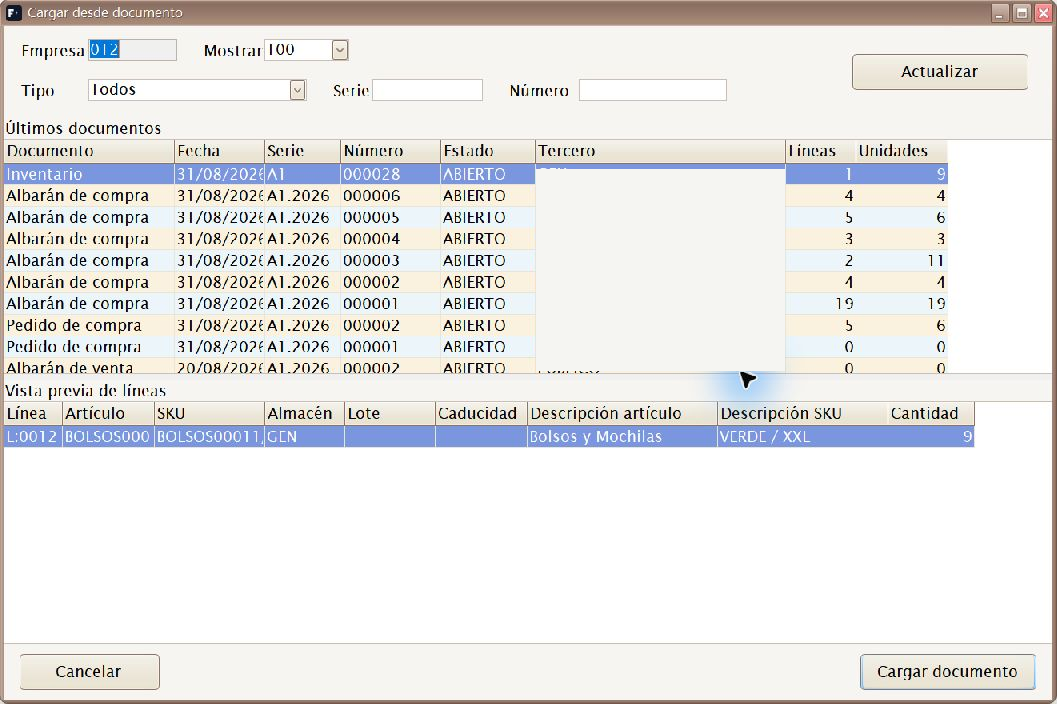
Recent documents and line preview before pressing Cargar documento.
The selector supports purchase or sales orders, delivery notes and invoices, supplier returns, POS sales, transfers and transfer requests, purchase sessions, stocktakes and price lists. The preview lets you check item/SKU, description, warehouse, batch, expiry date and quantity before confirming. Source and destination must belong to the same company. Only lines are added to the Documento de Trabajo; the source document is not changed, and cancelled documents are not accepted. If you repeat a load, lines that have already been added are skipped.
Enviar a...
The Enviar a... button expands the available destinations. The document
must be saved, contain lines and remain in CREADO status.
For numbered destinations, the Enviar a... dialogue asks for Almacén,
Serie and Número. Leave the number as 0 for the series counter to
assign it. Even if you enter a different number, the action always creates a
new document; it does not add the lines to an existing document.
| Destination | What it creates |
|---|---|
| Albarán de venta (mayor)... | An ABIERTO sales delivery note with the document's lines and quantities (using the official counter number or the one you enter). Prices start at 0: assign the customer, price list and prices in the delivery-note Mto. |
| Factura de venta (mayor)... | A sales invoice in BORRADOR with the document's lines and quantities (using the official counter number or the one you enter). Assign the customer, price list, prices and taxes before consolidating it. |
| Venta TPV | Opens or reuses an empty till operation and loads the SKUs and their quantities. The POS resolves prices using its price list; any references it cannot resolve are reported on completion. |
| Pedido de compra... | An ABIERTO purchase order with the document's lines and quantities. Assign the supplier, prices and purchase terms before processing it. |
| Albarán de compra... | An ABIERTO purchase delivery note with the lines and quantities. Assign the supplier, prices and terms and save it from its maintenance screen; until then, it does not generate the stock receipt. |
| Devolución a proveedor... | An ABIERTA supplier return with the lines and quantities. Assign the supplier, prices and terms and save it from its maintenance screen; until then, it does not generate the outbound stock movement. |
| Traspaso de caja... | Opens the usual TPV ▸ Traspasos operation in transfer mode, with items and quantities preloaded. The source is the active Caja location; select the destination warehouse and employee there, with the usual stock checks retained. |
| Petición de traspaso... | Opens the same operation in request mode, with items and quantities preloaded. Select the warehouse from which the goods are requested; the request does not move stock until it is fulfilled. |
| Inventario... | An ABIERTO stocktake in which the document quantity becomes the physical quantity and the recorded stock becomes the theoretical quantity. Then use Recalcular teórico/PMP in Inventarios before applying it. |
| Sesión de cambio de tarifas | A price-list change session in BORRADOR with one item per line. Open Tarifas ▸ Cambios to select source/destination price lists, calculation rule and apply the change. |
When one of the saved destinations is created successfully, your own
Documento de Trabajo changes to ENVIADO and becomes read-only; it can then
be archived. Venta TPV, Traspaso de caja and Petición de
traspaso only leave an operation open on screen, so they do not change the
Documento de Trabajo status. For a shared document, sending creates the
destination for the user who runs the action without changing the owner's
original.
Adding lines from other screens: as well as entering them or loading them by filters, you can record references without leaving your current screen by using the Agregar a Documento de Trabajo... context menu in the Consulta de stock (
[Ctrl]+[U]) and the item data search ([Ctrl]+[E]).
Informes
Balance de Almacén Horizontal
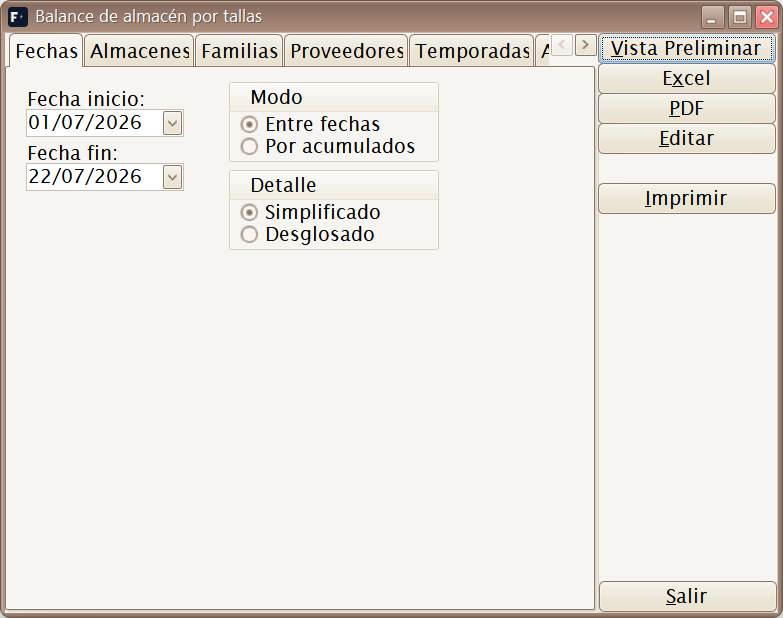
A stock report broken down by size in columns (horizontal). It displays each item's stock distributed across its variants/sizes, making it ideal for fashion items. You can filter it (warehouse, family, dates and so on), preview it, and print/export it.
The filter supports:
- Modo: between dates or by cumulative values.
- Bandas: opening stock, inbound movements, sales, closing stock and, in detailed mode, movement subtypes.
- Almacenes, familias, proveedores, temporadas y artículos.
- Reorderable Agrupaciones by warehouse, supplier, family or season.
The Familias tab is displayed as a tree. Selecting a family includes its subfamilies.
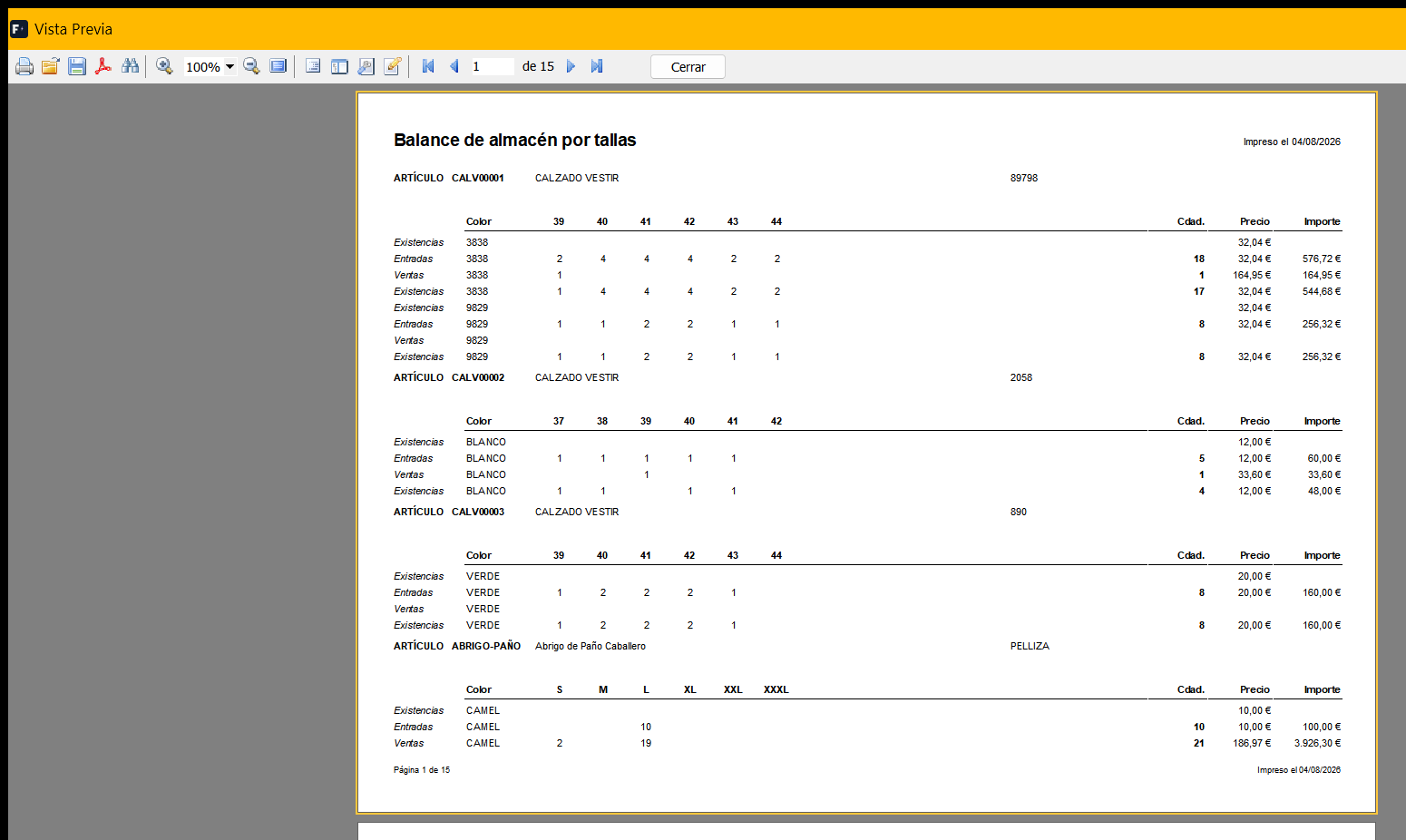
The preview displays sizes in columns by item and colour, and separates the opening stock, inbound and sales bands, with quantities, prices and amounts.
Balance de Almacén sin tallas
A stock report aggregated by item, without expanding the size detail. This provides a summary view when no variant breakdown is required.
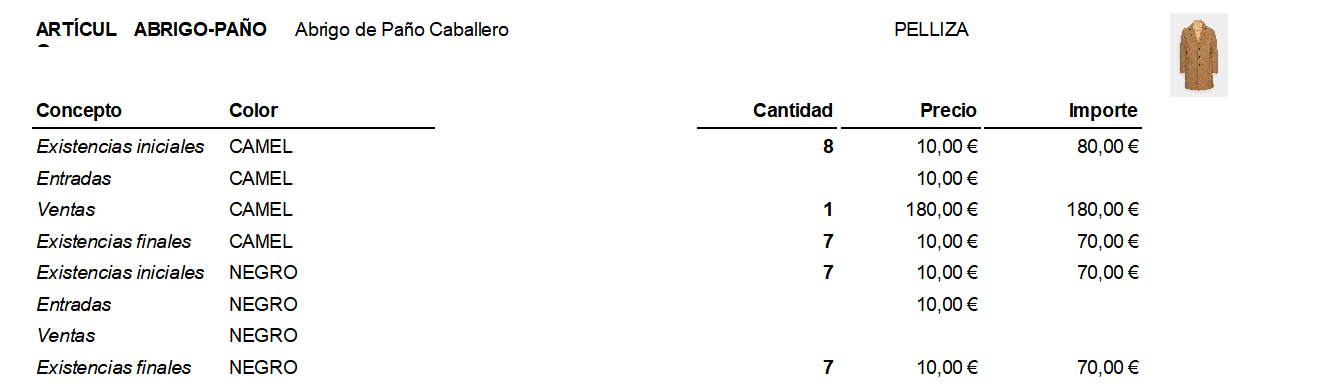
It includes items both with and without sizing, and uses the same filters, bands, grouping and Excel export system as the horizontal balance.
Movimientos de ventas por artículos y fechas
A report of sales by item within a date range: which items were sold, in what quantity and during which period. Useful for analysing stock turn and replenishment.
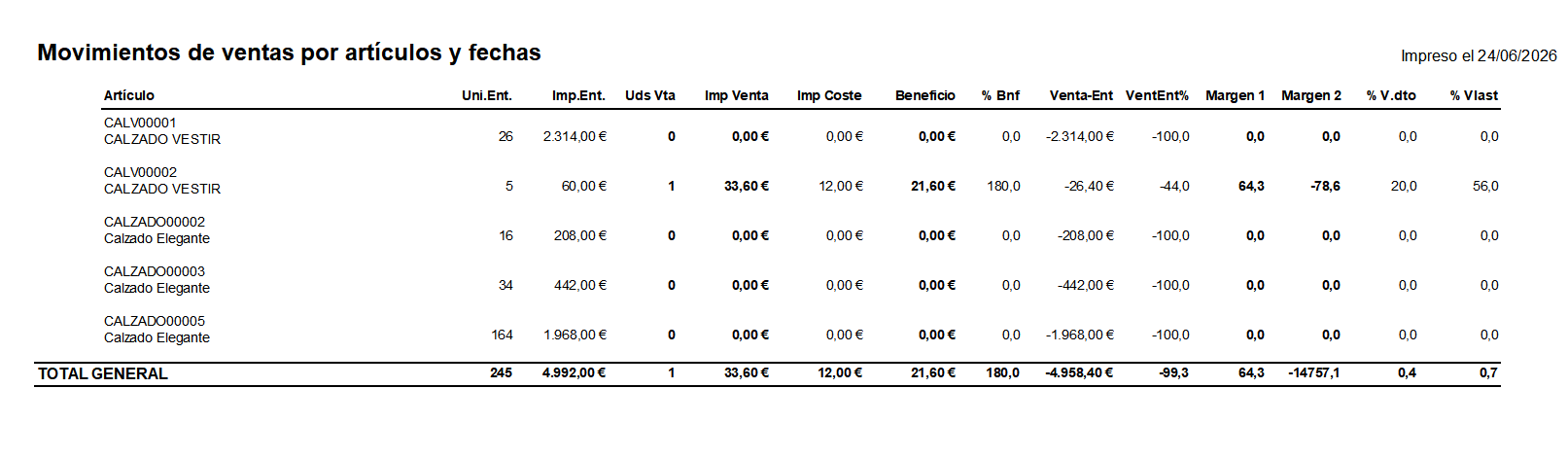
In addition to the sales period, you can filter by Inicio compras to analyse only items whose first purchase is later than a date. The report calculates sales, cost, profit and two margins: margin on the goods sold and margin treating the whole purchase as an expense.
Under Agrupaciones, you can choose Color at any of the three levels. Each item is then broken down into one row per colour—the sizes for the same colour remain consolidated—and amounts, costs and margins are calculated for that colour. If Color is not selected, the aggregated item total is retained.
Report columns:
| Column | Meaning |
|---|---|
| Artículo | Item code and description. When grouped by Color it also displays the colour for each row; when grouped by warehouse, the same item may appear in several warehouse groups. |
| Uni.Ent. | Units purchased or received for the item. They are taken from inbound purchase/delivery-note movements. |
| Imp.Ent. | Cost amount of those receipts. This is the purchased value, not the sales price. |
| Uds Vta | Units sold within the Desde / Hasta period specified in the filter. |
| Imp Venta | Actual amount sold during the period, with discounts already applied and based on invoice lines. |
| Imp Coste | Estimated cost of the units sold. It is calculated by multiplying units sold by item cost. |
| Beneficio | Difference between sales and cost of goods sold: Imp Venta - Imp Coste. |
| % Bnf | Profit on cost: Beneficio / Imp Coste x 100. Measures how much was earned relative to the cost of the goods sold. |
| Venta-Ent | Difference between sales and all purchases: Imp Venta - Imp.Ent.. Shows whether sales during the period cover the complete purchase. |
| VentEnt% | Venta-Ent as a percentage of the purchased amount: Venta-Ent / Imp.Ent. x 100. |
| Margen 1 | Margin on goods sold: Beneficio / Imp Venta x 100. This is the normal commercial margin on completed sales. |
| Margen 2 | Margin treating the whole purchase as an expense: Venta-Ent / Imp Venta x 100. It penalises stock that remains unsold. |
| % V.dto | Units sold as a percentage of units received: Uds Vta / Uni.Ent. x 100. |
| % Vlast | Ratio of sales amount to purchased amount: Imp Venta / Imp.Ent. x 100. |
In group totals and the overall total, units and amounts are added together. Percentages and margins are recalculated from those sums; the percentages for individual items are neither added nor averaged.
Ranking order
The Ordenación tab can use any visible column as the criterion: Artículo/description, Uni.Ent., Imp.Ent., Uds Vta, Imp Venta, Imp Coste, Beneficio, % Bnf, Venta-Ent, Ven/Ent, Margen 1, Margen 2, % Vdo and % Vtas. The direction can be ascending or descending.
Ordering respects the hierarchy. Numeric criteria use each group's subtotal. Artículo/description sorts group labels alphabetically and sorts item description followed by code inside the innermost group. If no criterion is selected, the usual grouping and item order is retained.